Feature · Texting
SMS delivery reports for every bulk send
See who got your bulk text, who didn't, and why — in plain English. Look back over any period, show only the sends with problems, search by name or number, and download a CSV.
Part of Bulk SMS — included in the Business plan and in the 14-day free trial.
Tip: tap full screen to watch — the text is easier to read.
Why teams use it
Know exactly who got it.
The latest send, on top
After a send, the top of Bulk SMS shows its report. Click "Refresh" for the latest — or hide it.
Every send, newest first
The "Delivery reports" tab lists every bulk send you can see.
Filter and search
Pick the last 7, 30 or 90 days or all time, show only sends with problems, or search by name or number.
Reasons in plain English
"Details" lists each person, problems first, with the reason in plain English.
Honest statuses
"Sent — awaiting confirmation" means the phone network accepted it. Some networks, often outside the US, never confirm.
Download a CSV
Download a CSV of one send, or of every send shown — in your local time.
At a glance
One send, counted
Example send
"Big announcement: new opening hours"
1,200 people
+1 (512) 555-0163 · Not delivered — "The phone was unreachable (switched off or out of coverage)."
Example numbers from our demo workspace.
Three steps
How it works
- 1
Step 1
See every send
Open "Delivery reports" to see every send, newest first, with how many were delivered, are awaiting confirmation, or failed.
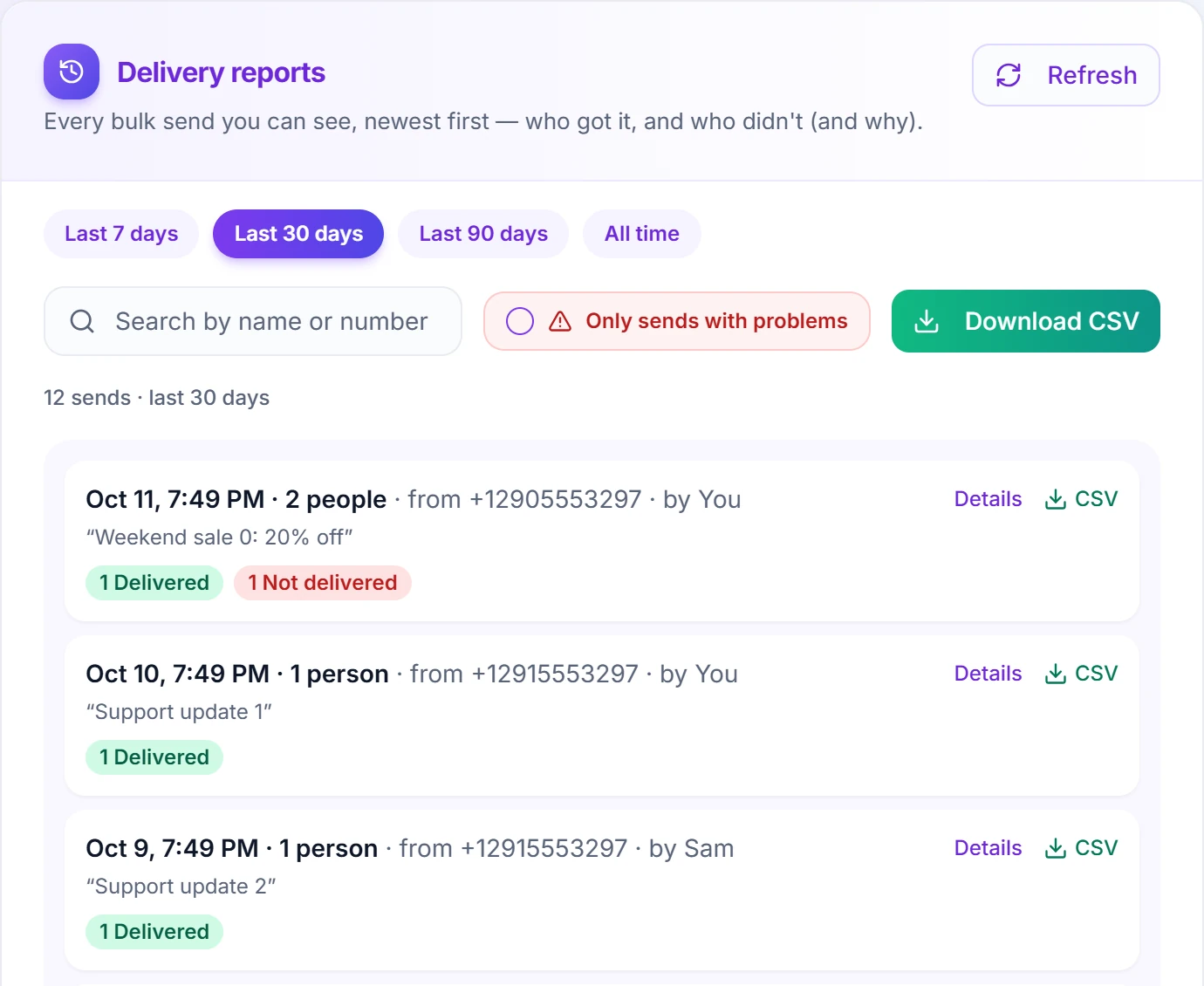
Pick the last 7, 30 or 90 days, or all time. - 2
Step 2
Find the problems
Show only sends with problems, or search by name or number to find one person's text.
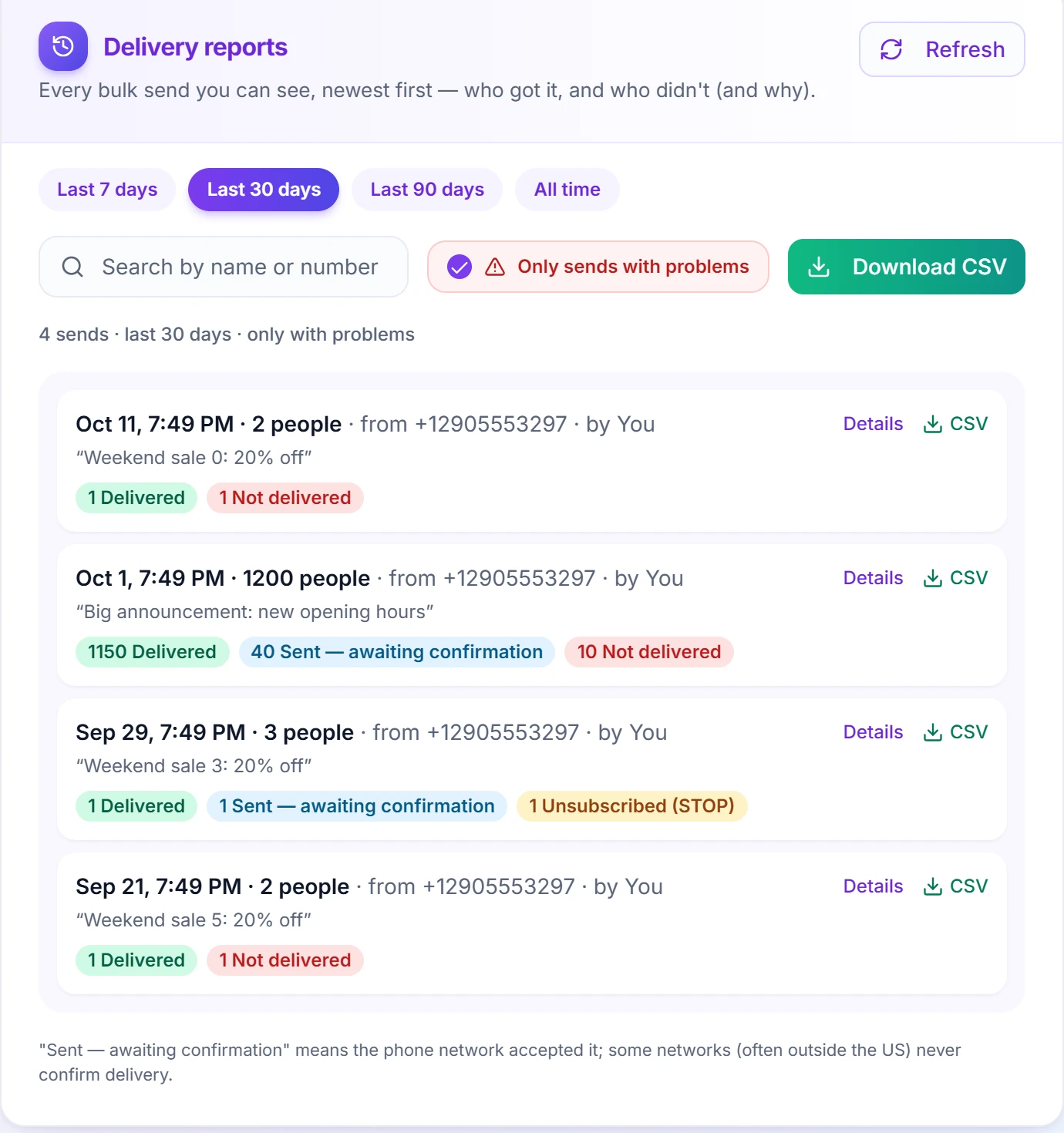
Only sends with problems, in one click. - 3
Step 3
See the reasons
Click "Details" to see each person, problems first, with the reason in plain English.
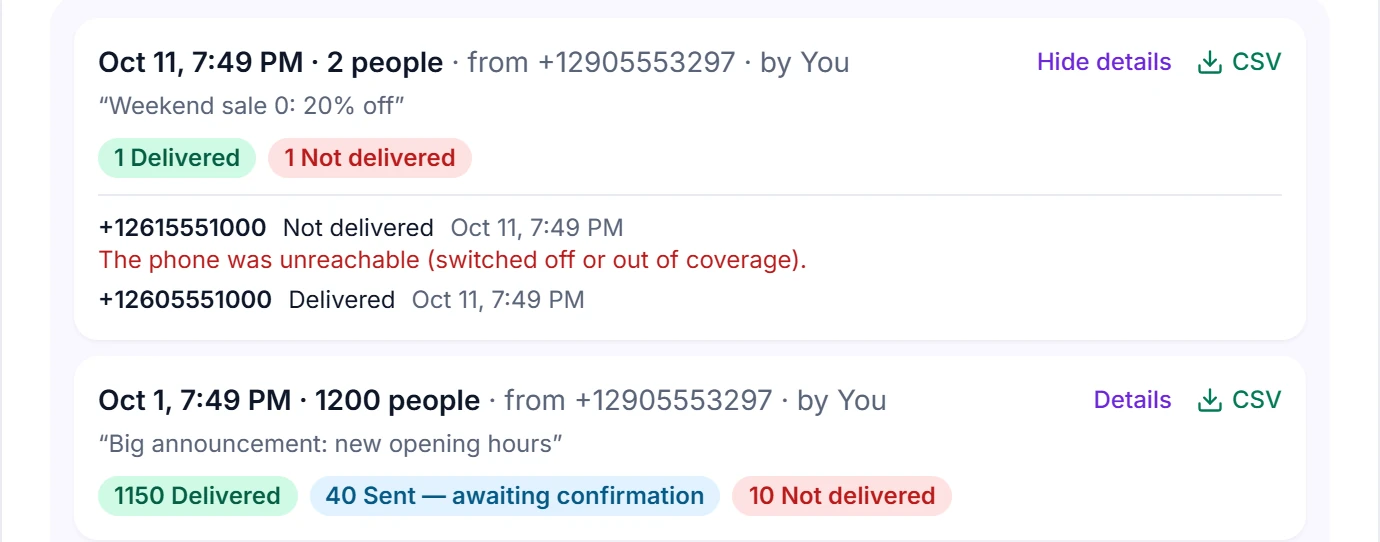
Each person, with the reason in plain English.
Questions
How do I see who got my bulk text?
Open Bulk SMS. Right after a send, the top of the page shows its delivery report — click "Refresh" for the latest, or hide it (it stays in Delivery reports and comes back with the next bulk send). The "Delivery reports" tab lists every send, newest first: pick the last 7, 30 or 90 days or all time, show only sends with problems, or search by name or number. "Details" lists each person, problems first, with the reason in plain English. "Sent — awaiting confirmation" means the phone network accepted the text; some networks (often outside the US) never confirm delivery. Download a CSV of one send or of every send shown (times in your local time). The account owner sees every send; a teammate sees their own sends, plus sends from the lines they are on if they may "See all team calls & texts".
Can I send bulk or scheduled messages?
Yes. You can text multiple contacts at once, save reusable message templates, and schedule messages to send automatically at a future date and time.
Can I text people in other countries?
Yes, wherever Twilio supports messaging to that country from your number. Twilio bills you directly at their per-message rate for the destination, with no markup from us. A few countries restrict business texting from foreign numbers, so if messages to a particular country don't deliver, that restriction is usually the reason.
See who got your texts
Start your 14-day free trial — Bulk SMS, delivery reports and everything else included.