Feature · Calling
Business calling on any device
Make and take calls from your computer or your phone, using your business numbers. Pick the line you call from, add people to a call, and find every call in Recent Calls.
Tip: tap full screen to watch — the text is easier to read.
Why teams use it
Your business line, wherever you are.
Computer or phone
Open Calling and, when the badge says "Ready", you're set to call. On your phone, use Dial Pad and Calls.
Pick your line
"From" shows the line your call comes from. Have more than one? Pick it. Teammates call from their own lines.
Everything mid-call
Mute, open the Keypad to press numbers, or End call. "Add" brings another person into the call.
Rings on any page
Calls ring on any page while the app is open, and saved contacts show by name.
Missed? Not lost
If nobody answers, the caller can leave a voicemail and you get a missed-call alert.
Every call in one list
Recent Calls lets you call back, add the caller to your contacts, or block them.
Answer in a tap
A call comes in
Incoming call
David Miller
+1 (212) 555-0147
Three steps
How it works
- 1
Step 1
Dial and pick your line
Type the number, or pick a saved contact with the book icon. "From" shows the line your call comes from — pick another if you have more than one.
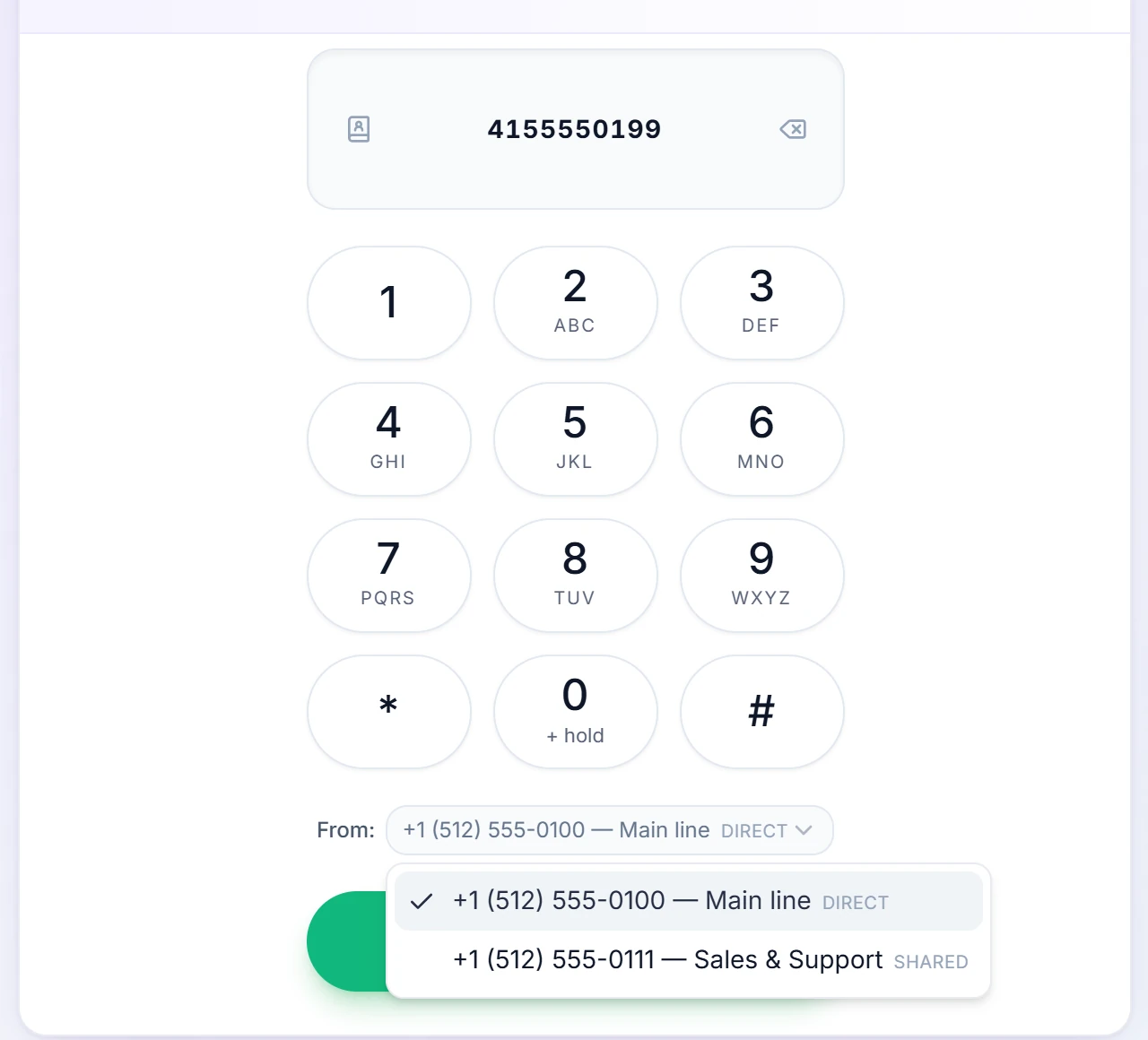
In the US and Canada, 10 digits are enough. - 2
Step 2
Talk
Click "Call". While you talk you can Mute, open the Keypad, or End call — and "Add" brings another person in.
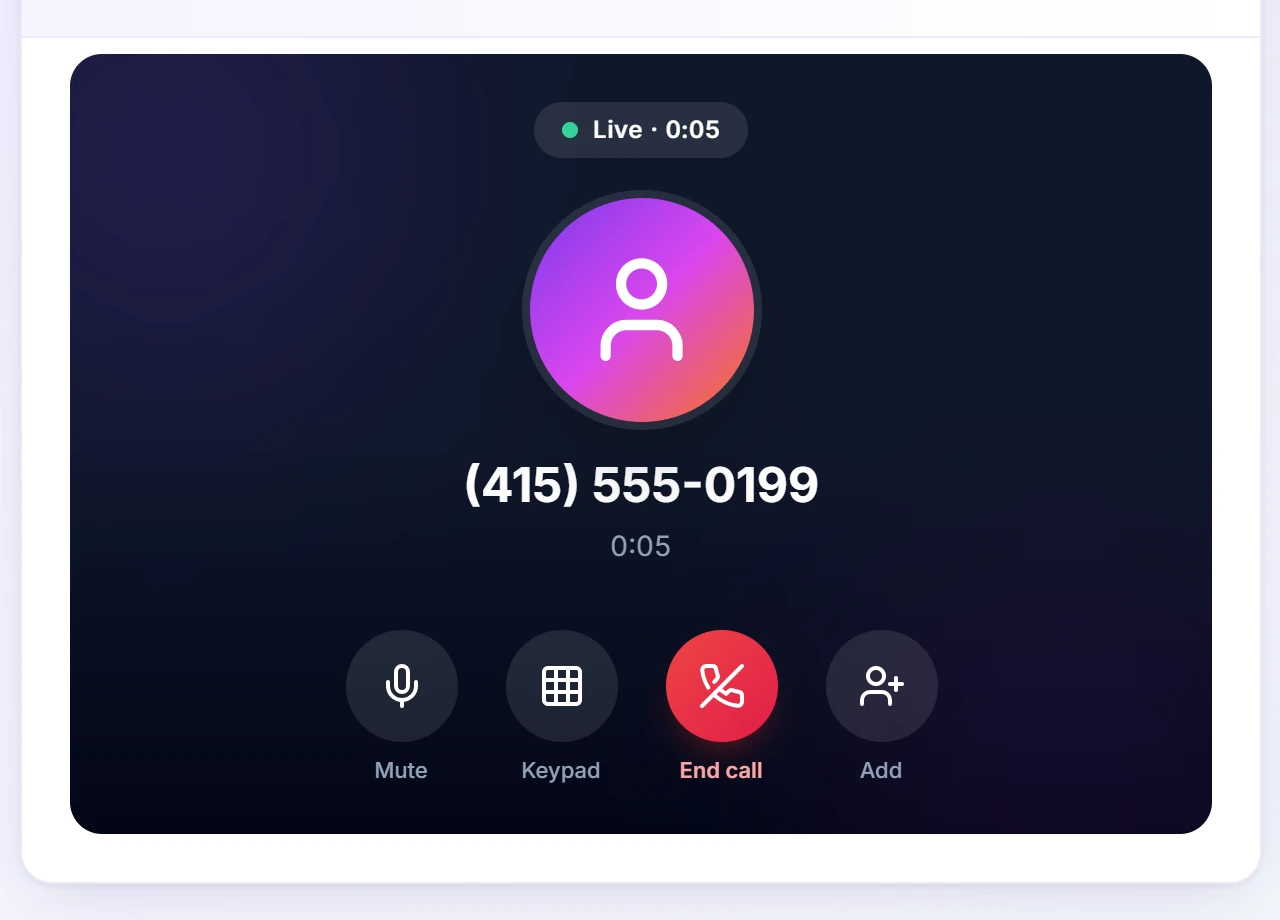
Mute, Keypad, End call — or Add someone. - 3
Step 3
Find it afterwards
Every call is in Recent Calls — incoming, outgoing and missed, with the line it used.
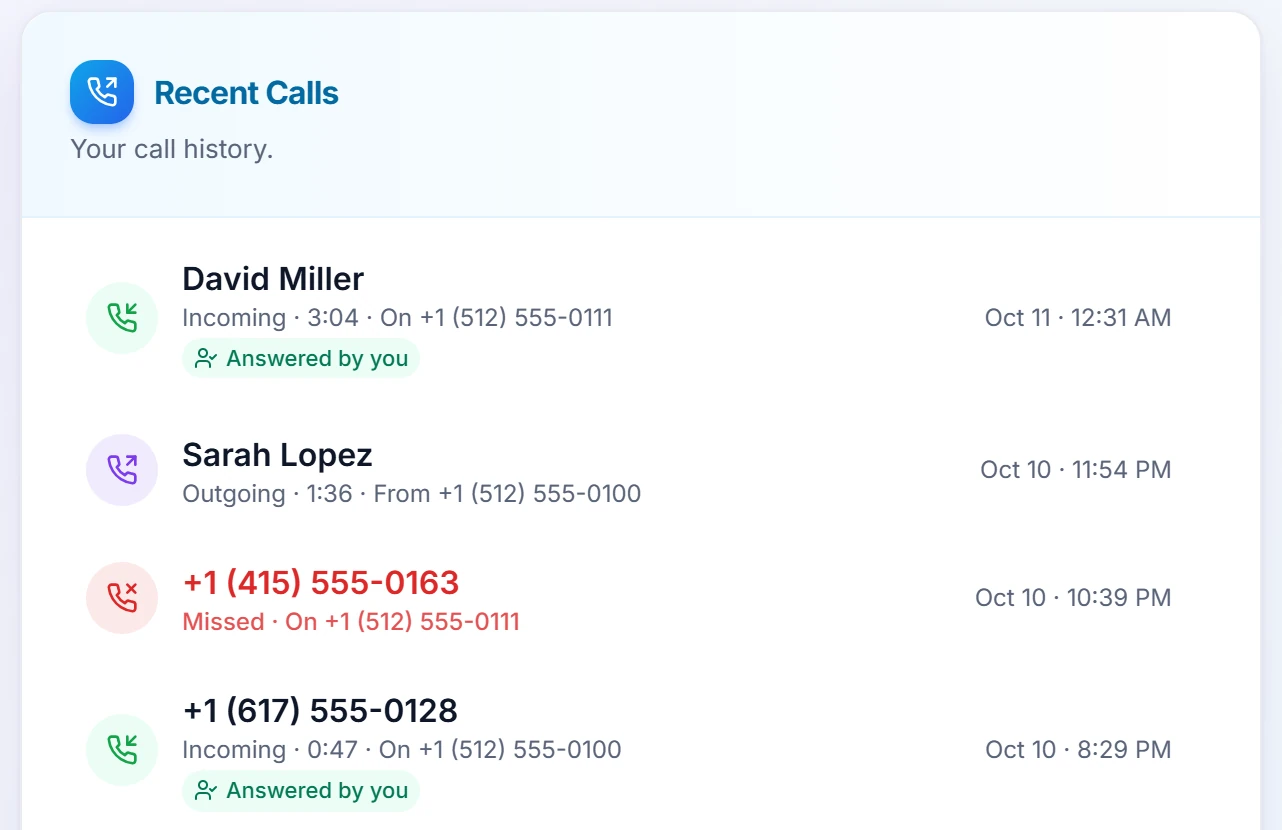
Call back, add to contacts, or block — from any call.
Questions
Can I make and receive calls on my computer or phone?
Yes, both — on any device with an internet connection. Outbound calls use a full dial pad with mute, keypad and hang-up controls, and incoming calls ring with a popup anywhere in the app. To answer a call, RingIgnite must be open — on a computer keep its tab open, on a phone keep the app open on screen. Turn on notifications and RingIgnite also alerts you to incoming calls, missed calls, texts and voicemails when it isn't on screen; a call that reached you while the app was closed or asleep shows as a missed call you can return.
Do I have to keep the app open to receive calls and texts?
To answer calls, yes — RingIgnite must be open: on a computer keep its tab open, on a phone keep the app open on screen. A phone app that is closed or asleep can't ring. With notifications on (install RingIgnite as an app — Add to Home Screen on iPhone, Install on Android and desktop — and allow notifications) you're alerted to incoming calls, missed calls, texts and voicemails even when the app is closed, and a call you couldn't take shows as a missed call to return. If you want calls to reach you when you're away from the app, set up call forwarding to your mobile.
What happens when I miss a call?
The caller hears your voicemail greeting (text-to-speech or your own recorded audio) and can leave a message. You'll see the missed call in your history and can get an email for every missed call and every new voicemail, with a button to listen in RingIgnite.
Related features
Make your first call today
Start your 14-day free trial — calling, texting and everything else included.