Feature · Calling
Conference calls for your team
Bring teammates and outside numbers into one call. Add people with a tap, see who's connected, and find the call — and its recording — afterwards.
Conference calls are on the Business plan — included in the 14-day free trial.
Tip: tap full screen to watch — the text is easier to read.
Why teams use it
Everyone on one call.
Anyone can join
Pick a teammate by name and their app rings with your invite — or dial an outside number or a saved contact.
See who's on
Each person shows "Ringing…" until they answer, then "Connected", with a timer.
Real ringing
You hear the real ringing, just like a normal call.
Host controls
Mute yourself anytime, put anyone on hold and resume them, or remove one person — everyone else stays on.
Add to any call
Press "Add" during any normal call to bring someone in.
Recorded from the answer
With call recording on, recording starts the moment someone answers — no ringing — and everyone on the call can play it.
Live room
People joining the call
Conference · 0 on the call
You
Host
Liam Smith
Teammate
David Miller
+1 (212) 555-0147
Three steps
How it works
- 1
Step 1
Start and add people
Open Conference and press "Start conference" — you're the host. Press "Add" to pick a teammate by name, or dial an outside number.
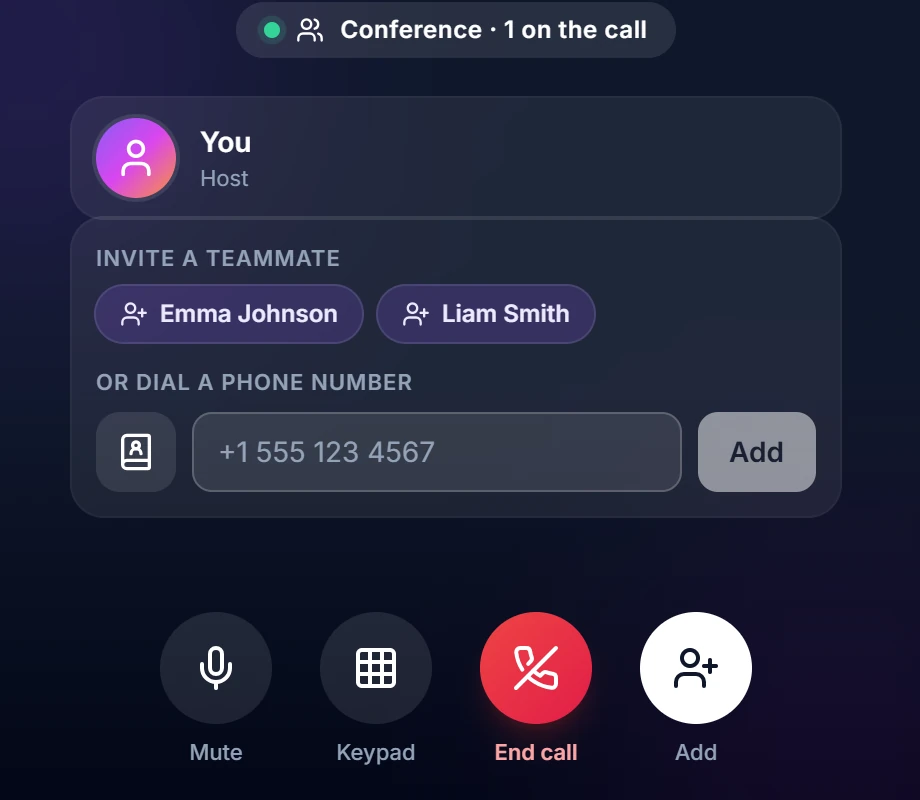
Invite a teammate by name, or dial any number. - 2
Step 2
Talk together
Each person shows "Ringing…", then "Connected". Mute yourself, put anyone on hold, or remove one person.
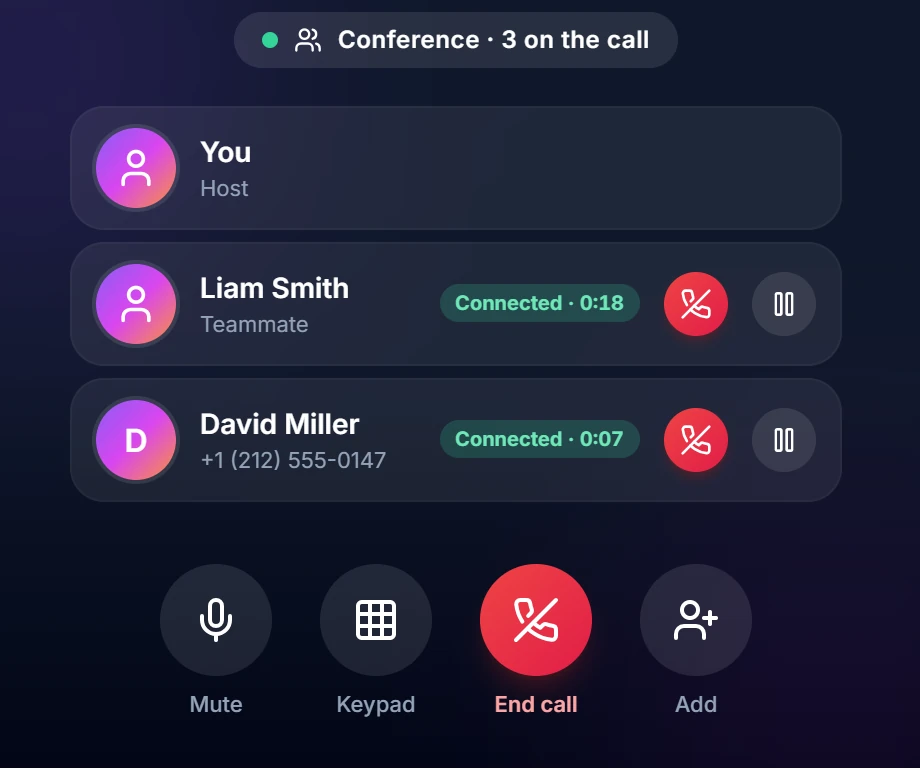
Everyone shows "Connected", with a timer. - 3
Step 3
Find it afterwards
The call is in Recent Calls with everyone who was on it. Anyone who didn't pick up is marked "no answer".

Every conference in Recent Calls, with who was on it.
Questions
Does it support conference calls?
Yes, on the Business plan. Start a group call from the Conference page, or press Add during any call to bring in a teammate by name or an outside number — great for looping in a teammate mid-conversation. You can mute yourself and put anyone on hold, and the host can remove one person (handy when a number you added reaches voicemail); when the host leaves, the call ends for everyone.
Are my calls recorded, and can I turn that off?
Call recording is ON by default, and recordings are stored against your account so you and anyone with permission to see that line can play them back. You can switch it off at any time in Settings → Voicemail & Recording. Voicemail messages are always recorded — that's the point of voicemail — and are separate from call recording.
Do I need to tell people that calls are recorded?
Very likely yes, and the rules depend on where you and the person you're calling are. Some places require only one person on the call to know; others require everyone to agree first. Because recording is on by default, please check what applies to you before you rely on it, add a spoken notice to your greeting if you need one, and turn recording off in Settings if you'd rather not record. We can't give legal advice — this one is genuinely worth two minutes with someone who can.
Run your first conference call
Start your 14-day free trial — conference calls and everything else included.