Feature · Calling
Private and team lines for every number
Choose who rings when someone calls each of your lines. Keep a line private to you, share it with your team, or give it to one person.
Team lines are part of the Business plan — included in the 14-day free trial.
Tip: tap full screen to watch — the text is easier to read.
Why teams use it
The right people, on every line.
Private lines
"Only me" makes it your private line. Teammates never ring on it.
Team lines
"Me and my team" makes it a team line. You and your teammates ring, and the first to answer takes the call.
Pick exactly who
In Numbers → Set up, tick the people who should ring. Anyone you untick won't ring.
Direct lines
Pick "Direct line" for one person. Then only that person rings, and they set their own forwarding and voicemail.
The owner decides
Only the account owner can make a line private. Managers can change team lines.
Name your lines
Name a line with the pencil. A name is optional — without one, you see the number.
Same call, two lines
Who rings on each line
Main line
+1 (512) 555-0100
Only meIncoming call · David Miller
Sales & Support
+1 (512) 555-0111
Me and my teamIncoming call · David Miller
Three steps
How it works
- 1
Step 1
Choose for each line
Open Settings, then "Who rings on an incoming call". Pick "Only me" or "Me and my team" for each line — your choice saves right away.
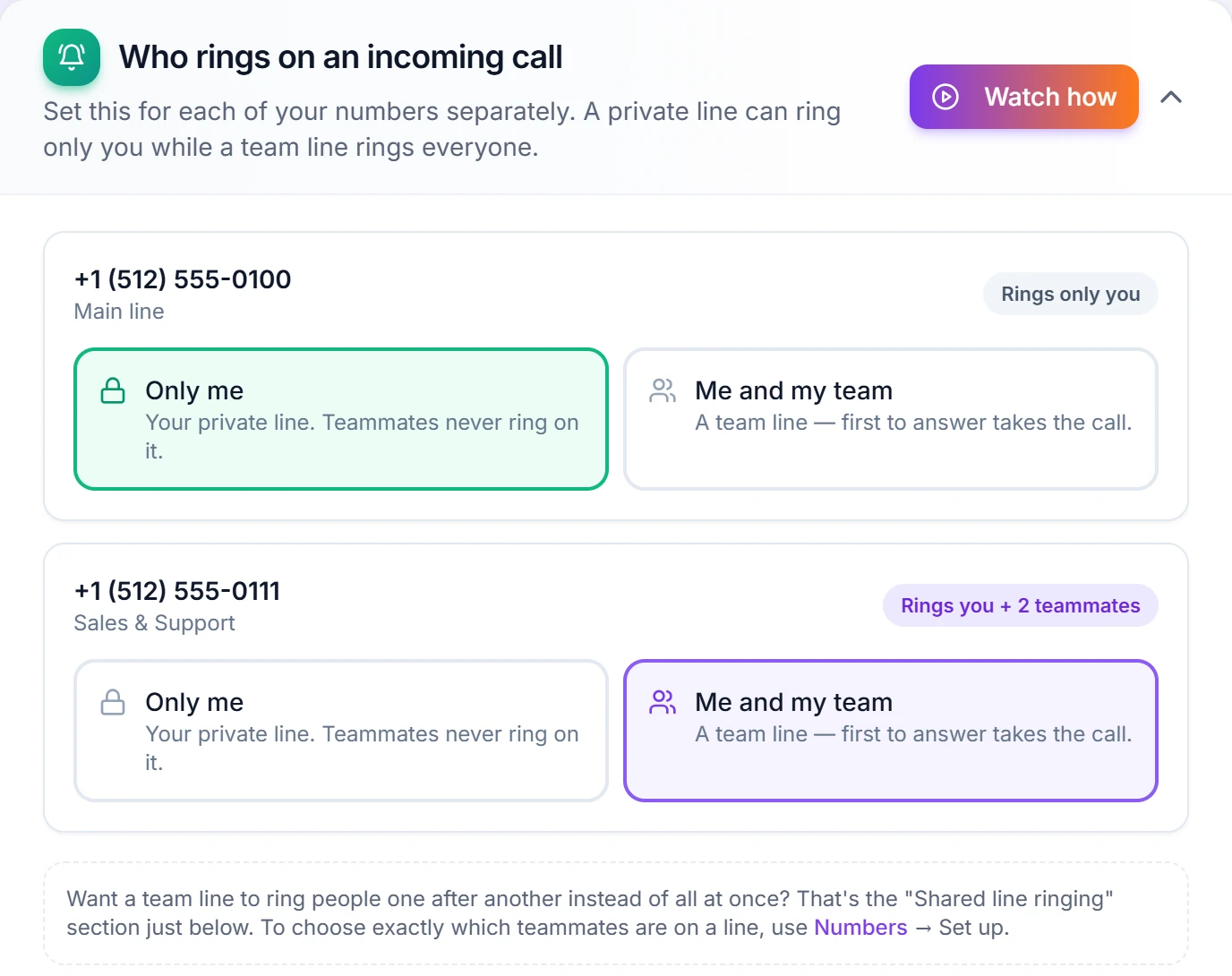
Each line has its own choice. - 2
Step 2
Pick exactly who rings
To choose exactly who is on a line, open Numbers and click "Set up". Tick the people who should ring.
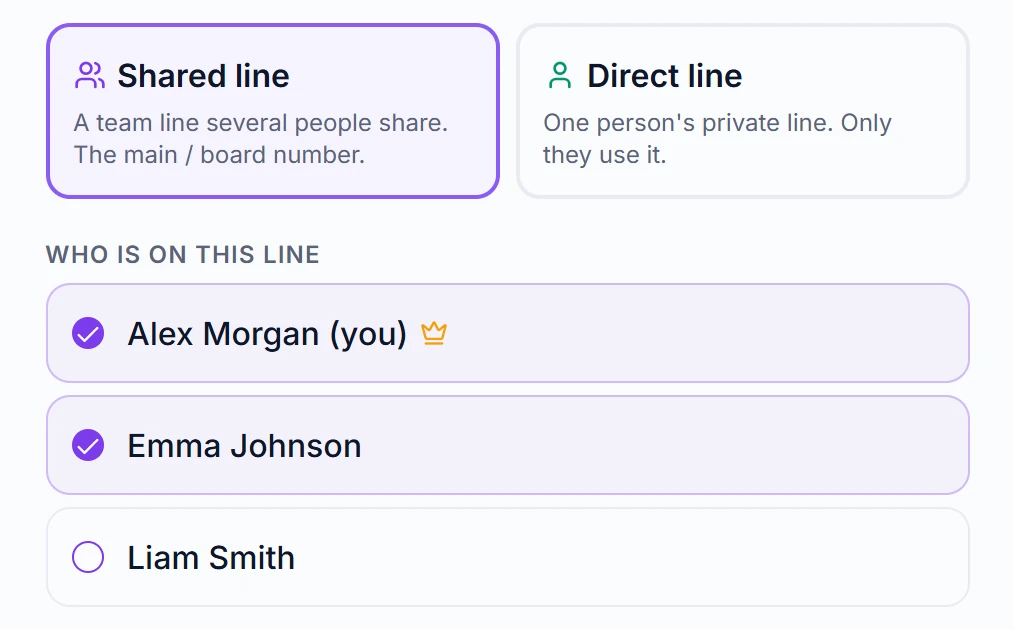
Anyone you untick won't ring. - 3
Step 3
Or give it to one person
Pick "Direct line" for one person. Then only that person rings, and they set their own forwarding and voicemail.
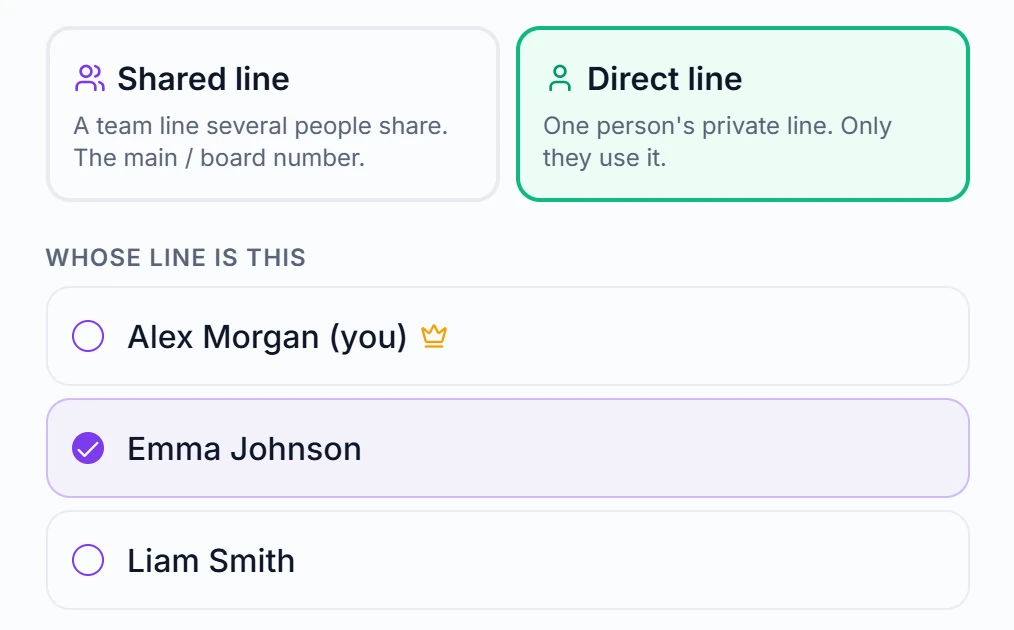
A direct line rings only that person.
Questions
Can one number ring only me while another rings the whole team?
Yes, and it's set per number. In Settings → "Who rings on an incoming call", each of your numbers has its own choice: "Only me" makes it a private line that teammates never ring on, and "Me and my team" makes it a team line where the first person to answer takes the call. It saves right away. Only the account owner can make a line private or change a private line; managers can change team lines. To pick exactly who is on a line, open Numbers → Set up and tick the people who should ring, or choose "Direct line" to give it to one person. A team line can also ring people one after another instead of all at once — that's the "Shared line ringing" section just below it.
Can two people answer the same call at once?
No — and that's deliberate. On a shared line everyone's device rings together, and the moment one person answers, everyone else stops ringing. The call history then records who actually took it, so you can see who handled what.
Can a team line ring people one after another?
Yes. In Settings → "Shared line ringing" choose "Ring in order" for a team line ("Ring everyone" rings them all at once). One person rings at a time, from the top of the list: about 23 seconds each with 2 people, 17 with 3, and 15 with 4 or more. Set the order in Numbers → Set up → "Ring in order" with the up and down arrows, then Save. If nobody answers, the call goes to the line's forwarding or voicemail. The owner and managers can change it.
Related features
Set up your team lines today
Start your 14-day free trial — private lines, team lines and everything else included.