Feature · Team
Business contacts for your whole team
Keep everyone you call and text in one place. Add a contact in seconds, share it with your team or keep it private, bring in a list, and see names and photos in your calls and chats.
Included in every plan and in the 14-day free trial.
Tip: tap full screen to watch — the text is easier to read.
Why teams use it
Know who's calling, every time.
Only the number needed
Press "Add Contact" — only the phone number is needed. Add a name, email, company, photo, tags and notes if you like.
Never saved twice
If that number is already saved, RingIgnite tells you, so nobody is saved twice.
Team or private
"Whole team" shares a contact with everyone. "Only me" keeps it private — not even the Admin can see it.
Find anyone fast
Search by name, number or email, or tap a tag to filter the list.
Call or text in a tap
Tap the phone to call, or the chat bubble to text. Their name and photo then show in your calls and chats.
Import and export
Import a CSV file — numbers you already have are updated, not added twice. Export saves your list as a CSV file.
Tap a tag
Your contacts, organised
Contacts
+ Add ContactExample contacts from our demo workspace.
Three steps
How it works
- 1
Step 1
Add a contact
Press "Add Contact". Only the phone number is needed — add a name, email, company, photo, tags and notes if you like, and choose who can see it.
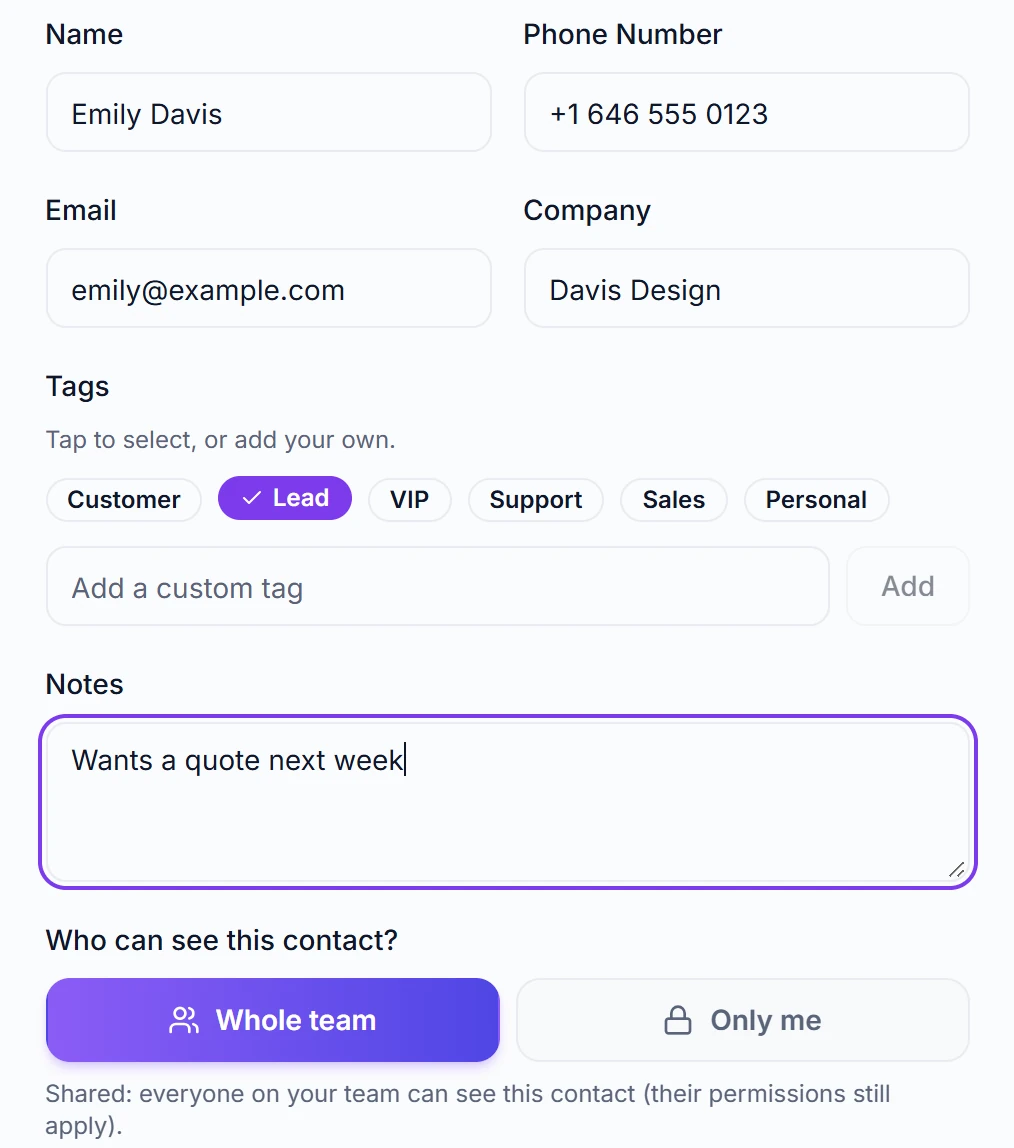
"Only me" keeps it private — not even the Admin can see it. - 2
Step 2
Find anyone
Search by name, number or email, or tap a tag to filter the list.
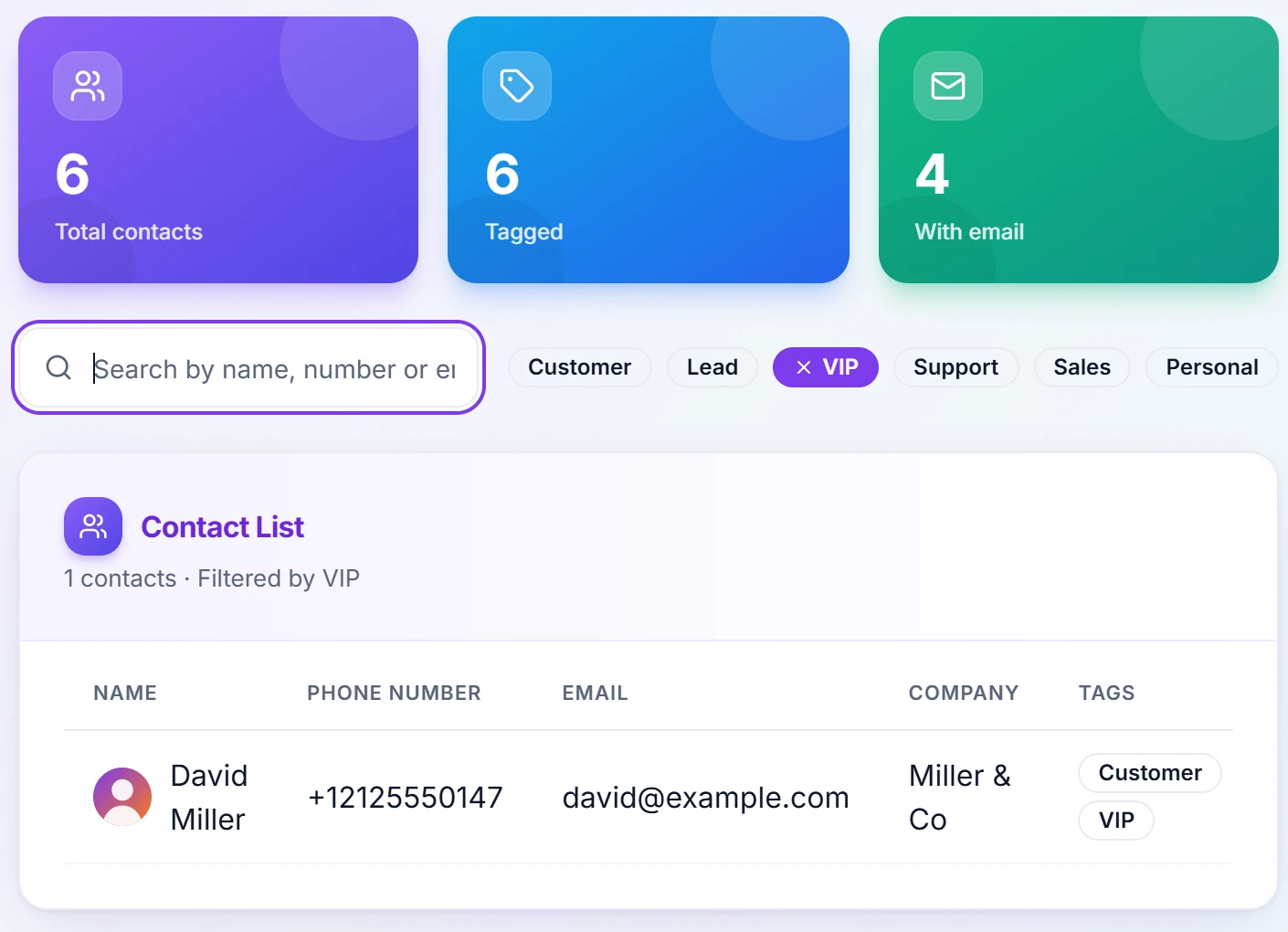
Tap a tag to filter the list. - 3
Step 3
Bring in a list
Press "Import" and choose or drop a CSV file. Download the sample to see the columns.
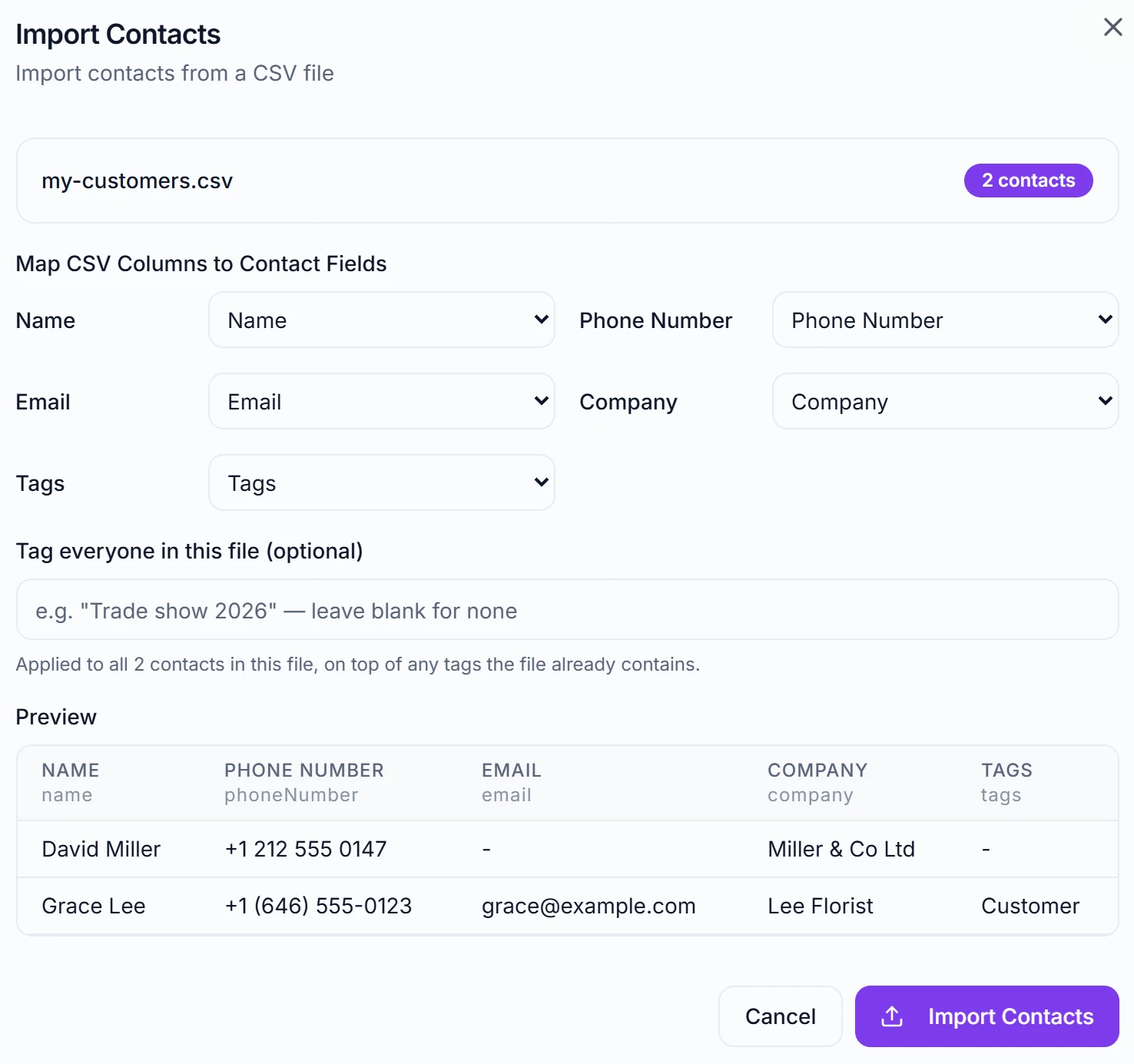
Numbers you already have are updated, not added twice.
Questions
How do I add and import contacts?
Open Contacts (a tab in the bottom bar on a phone) and press Add Contact. Only the phone number is needed; you can also add a name, email, company, photo, tags and notes. If that number is already saved, RingIgnite tells you instead of saving it twice. Choose "Whole team" to share it with everyone, or "Only me" to keep it private — not even the Admin can see it. To bring in a list, press Import and choose or drop a CSV file (up to 5MB); "Download sample CSV" shows the columns, and numbers you already have are updated, not added twice. Export saves your list as a CSV file. Search by name, number or email, or tap a tag to filter. A caller you haven't saved yet? Open the call in Recent Calls and press "Add to contacts" — the number is filled in for you.
Can I keep some contacts private from my team?
Yes. Every contact is shared with your team by default, but you can mark a contact you add "Only me" when creating it, flip it later from its menu ("Make private" — only the person who added a contact can change who sees it), or set a Private column to Yes in a CSV import. A private contact is visible only to the person who created it — not to Managers, and not even to the Admin. The rule is enforced in the database itself, so it can't be bypassed.
Can other users see my contacts or calls?
No. Data is private to your workspace. Only teammates YOU invite can see shared conversations, and only within the permissions you grant them.
Bring your contacts with you
Start your 14-day free trial — contacts, calling, texting and everything else included.