Feature · Insights
Advanced analytics for your whole team
See how your team is doing: calls and texts, talk time, answer rate and busiest hour — in plain words, per teammate and per line, for any period. Export it all as a CSV.
Part of the Business plan — included in the 14-day free trial. The owner and managers can see it.
Tip: tap full screen to watch — the text is easier to read.
Why teams use it
Know how your team is really doing.
Any period
Pick 7, 30 or 90 days, or choose your own dates.
The numbers that matter
Calls and texts, talk time, answer rate, and your busiest hour.
In plain words
"What this tells you" puts the numbers into plain words.
Focus on a teammate
Click a teammate to focus the whole page on them. "Whole team" takes you back.
Who to call back
"Missed calls to follow up" lists who to call back, and "Number performance" shows each line's calls and texts.
Twilio spend and export
Only the owner sees Twilio spend: what Twilio charged your account, by channel. "Export CSV" downloads the whole report.
Focus
One teammate, one click
Answer rate
91%
Talk time
14h 20m
Busiest hour
10 AM
Busiest days and hours
Example numbers.
Three steps
How it works
- 1
Step 1
Pick your dates
Open Analytics and pick 7, 30 or 90 days, or your own dates. At the top: calls and texts, talk time, answer rate and your busiest hour.
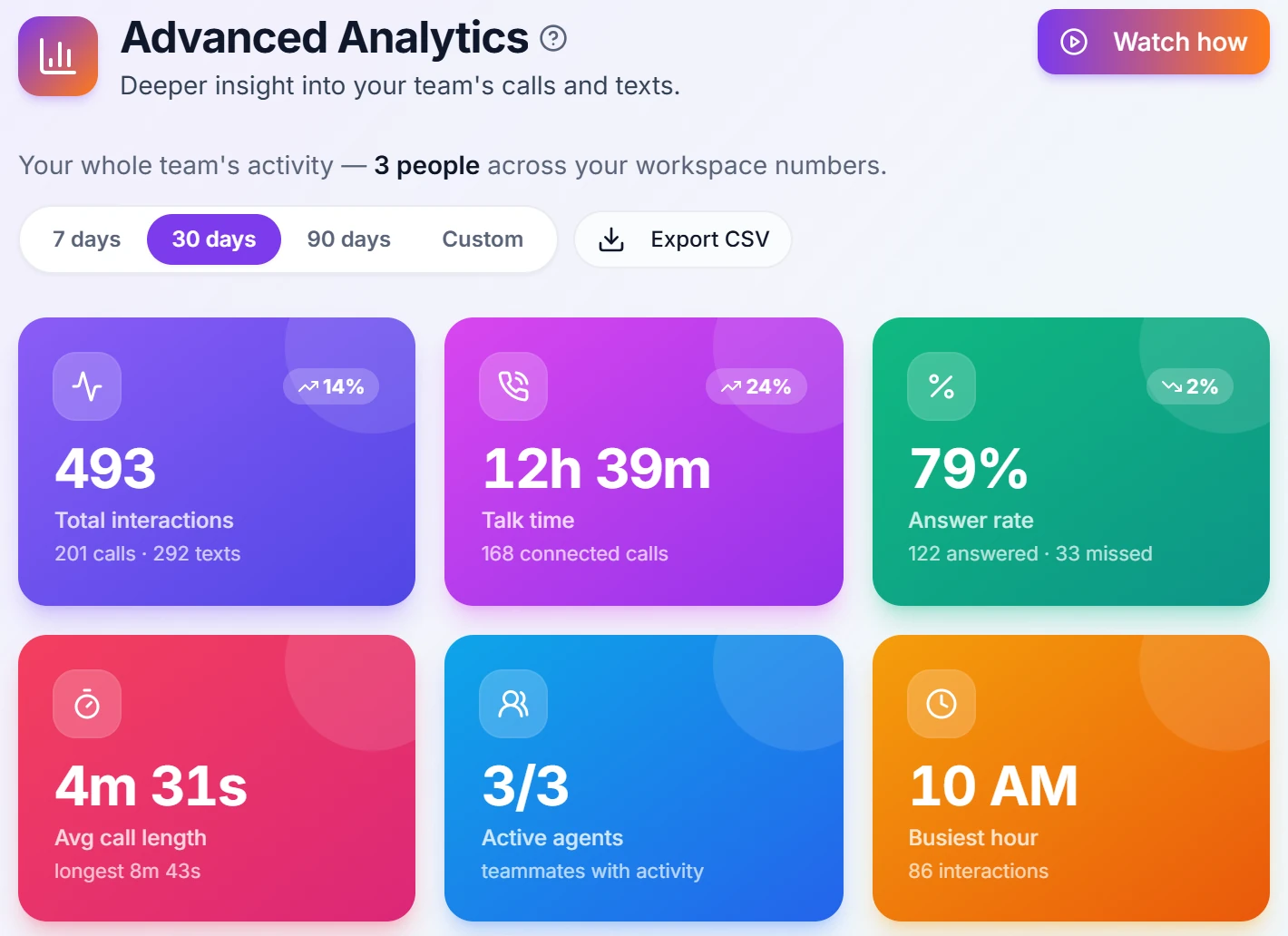
"Export CSV" downloads the whole report. - 2
Step 2
Read it in plain words
"What this tells you" puts the numbers into plain words. Click a teammate to focus the whole page on them.
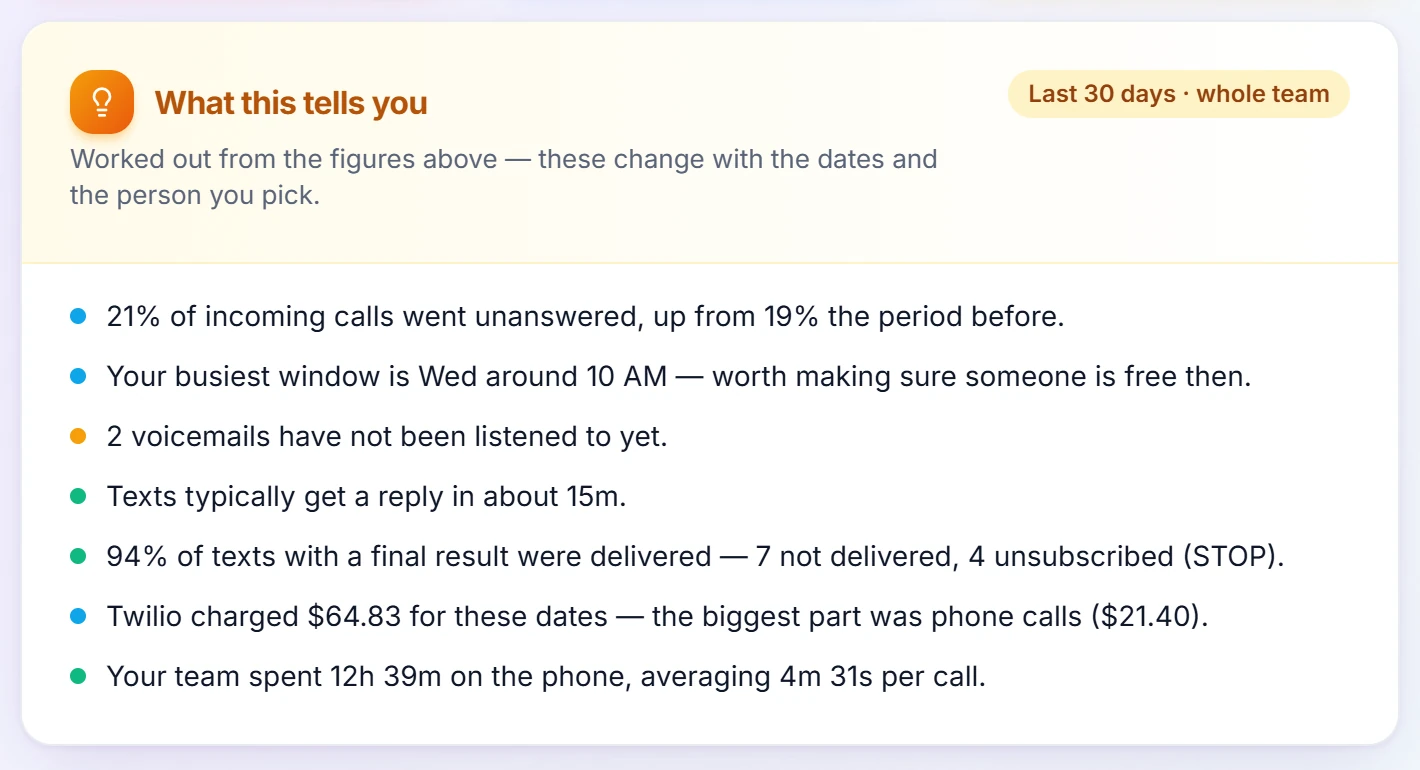
"Whole team" takes you back. - 3
Step 3
Follow up
"Number performance" shows each line's calls and texts, and "Missed calls to follow up" lists who to call back.
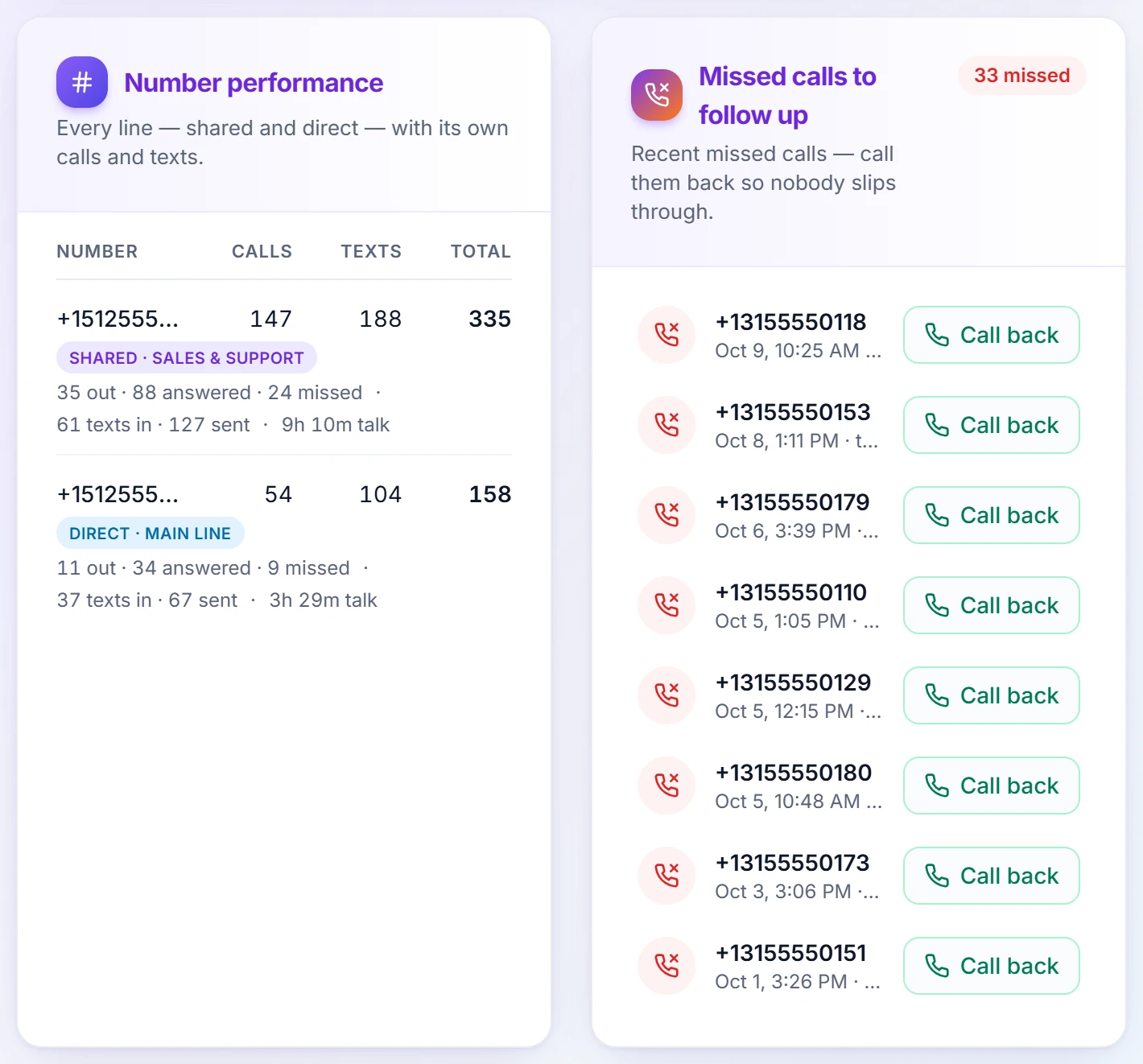
A "Call back" button next to each missed call.
Questions
What does Advanced Analytics show?
Open Analytics (Business plan, including the free trial; the owner and managers can see it). Pick 7, 30 or 90 days, or your own dates within the last year. At the top you get calls and texts, talk time, answer rate and your busiest hour, and "What this tells you" puts them into plain words. Each teammate has a card — click one to focus the whole page on them, and "Whole team" takes you back. Below: volume over time, how calls split, what happened to the texts you sent (delivery rate), your busiest days and hours, each line's calls and texts, and missed calls to call back. Only the owner sees Twilio spend — what Twilio charged your account, by channel, from Twilio's own usage report (it can run a few hours behind). "Export CSV" downloads the whole report.
What does the Dashboard show?
It is the first page after you sign in — your workspace at a glance. Pick a period (Today, 7 days, 30 days or your own dates) and four cards count your calls, messages, missed calls and new contacts, with the change from the previous period; tap a card to open that page. On a computer, the Activity chart shows your calls and texts day by day, and Call breakdown splits your calls into outgoing, answered and missed, with your answer rate, busiest day and top contact. Recent Activity lists your latest calls and texts, with who it was and which of your lines it used.
Can I control what teammates see and do?
Yes. For each agent you can toggle calling and texting on or off, choose whether they see the whole team's inbox or only their own conversations, set contact access to full, view-only, or personal-only, and choose whether they ring on incoming calls. You can also mark individual contacts as private so only you see them.
See how your team is doing
Start your 14-day free trial — advanced analytics and everything else included.